PDF Measuring Tool
Open a PDF plan, set the scale, then measure lengths, areas and angles and count items. The PDF stays on your device.
Free · runs in your browser · nothing is uploaded
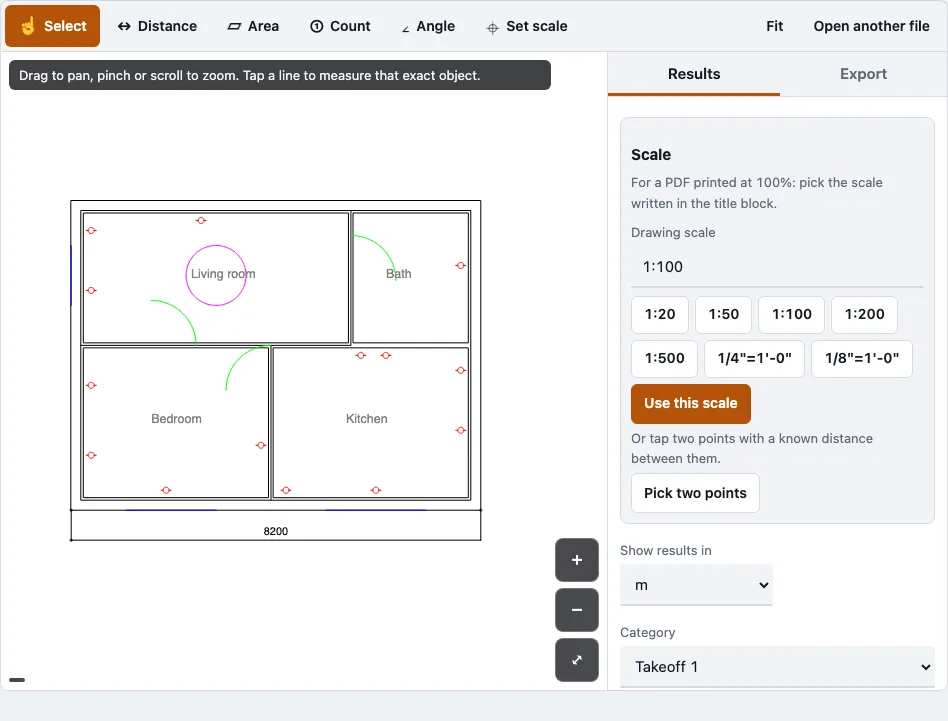
How to use the PDF measuring tool
- Open your PDF. The first page appears by default. For a multi-page file, pick the page you need from the page selector.
- Set the scale. Type a ratio such as 1:100, or an imperial scale such as 1/4"=1’-0". Or use Set scale, tap two points whose real distance you know, and enter that distance.
- Choose a tool: Distance for lengths (with a running total across segments), Area for a closed boundary, Angle for three points, or Count for numbered marks.
- Tap your points on the drawing. On a vector PDF, taps snap to line ends and corners.
- Press Finish to close a measurement. Use Undo point to remove the last point, or Cancel to drop the measurement in progress.
- Name a category for each group of results. The totals table shows length, area and count for each category.
- Copy the results into a spreadsheet with the copy button, or download them as CSV. Use clear to empty the results.
Pick the page and the scale before you start, because a wrong scale carries into every number below it. Zoom in before you tap to place points more precisely. Measurements stay saved in this browser for the same file name and size, so they return when you open that file again.
How do I set the scale of a PDF plan?
Setting the scale tells the tool how far a distance on the page is in real life. Type a ratio or an imperial scale from the drawing’s title block, or tap two points whose real distance you know and enter it. If no scale is set, the tool asks for one instead of guessing.
- Read the scale from the title block, for example 1:100 or 1/4"=1’-0".
- Enter a ratio. 1:20, 1:50, 1:100, 1:200 and 1:500 are common. Imperial scales assume the PDF is printed at 100 % size, where one PDF point is 1/72 inch.
- Or tap two points a known distance apart, then enter that distance in m, mm, cm, ft or in.
- Check that the scale the tool shows matches the drawing.
- On a multi-page PDF, set the scale again for each page, because pages can differ.
Printed length to real length
Multiply the length on the printed page by the scale ratio to get the real length. This table shows common cases.
| Scale | 10 mm on the page | 50 mm on the page | 100 mm on the page |
|---|---|---|---|
| 1:20 | 0.2 m | 1 m | 2 m |
| 1:50 | 0.5 m | 2.5 m | 5 m |
| 1:100 | 1 m | 5 m | 10 m |
| 1:200 | 2 m | 10 m | 20 m |
| 1:500 | 5 m | 25 m | 50 m |
| 1/4"=1’-0" (1:48) | 0.48 m | 2.4 m | 4.8 m |
How do I calibrate a scanned drawing?
A scanned drawing has no vector lines, so the tool cannot snap to them. You calibrate it by tapping two ends of a dimension you can read and entering its real length. Choose the longest printed dimension on the sheet, since a longer span gives a more precise scale.
- Find a dimension written on the drawing, such as a wall length or a room width.
- Zoom in until both ends are clear.
- Choose Set scale and tap the two ends.
- Enter the length exactly as written, in m, mm, cm, ft or in.
- Measure a second printed dimension to check the result.
Taps on a scan are placed where you touch, so tap the same spot each time.
How accurate is measuring distance on a PDF?
Accuracy depends on the scale you set, where you tap, and the drawing itself. Vector PDFs are the most precise, because taps snap to line ends and corners and the Select tool returns the exact length or area of a path.
If a printed dimension and the tool’s number differ by more than 1 %, the PDF was probably not printed at 100 % size, or the title block scale is not the real one.
How this tool works and where the numbers come from
The scale arithmetic follows from a PDF point being 1/72 inch (PDF 32000-1) and the ratio you enter; examples were calculated from that and checked in the tool on a test plan.
Sources
Questions and answers
What is a PDF measuring tool?
It is a browser-based tool that reads a PDF plan and measures lengths, areas, angles and counts between the points you tap. Nothing needs installing.
Is there a free tool to measure PDFs?
Yes. It is free, needs no account, and works on one file at a time.
Can I measure a PDF drawing online?
Yes. Open the PDF, pick the page, set a scale, then tap points with Distance, Area, Angle or Count. All of it runs in your browser tab.
What units can I measure in?
Calibrate with a known distance in m, mm, cm, ft or in, then show results in mm, cm, m, in or ft. To turn square feet into square metres, multiply by 0.092903.
Can I save my measurements?
Yes, in this browser. Measurements are kept per file name and size and return when you open the same file again. For a copy you keep outside the browser, use the CSV download or the copy button.
Can I measure PNG and JPG drawings?
Yes. PNG and JPG images use the same workflow as PDFs, scaled with two points. Perspective in a photo is not corrected, so a straight-on scan gives better results.
Does it work with multi-page PDFs?
Yes. The first page opens by default, and a page selector appears for multi-page files. Set the scale again after you switch pages, since each page can have a different scale.
Is my PDF safe when using this tool?
Yes. The file is processed entirely in your browser and is never uploaded to any server. No request carries the file.
Related tools
- Floor plan measurement tool: use it when your main job is measuring rooms and walls on a floor plan.
- Construction takeoff: use it when you need lengths and areas gathered for a whole project.
- PDF to DXF: use it when you want to convert a PDF drawing into DXF for CAD work.
- Quantity takeoff: use it when you need a list of quantities from drawings.
- DWG viewer: use it when your drawing is a DWG file you want to open and measure.
- DXF viewer: use it when your plan is a DXF file and needs no scale.