DXF to PDF Converter
Drop a DXF file, pick paper and scale, and save a vector PDF that prints true to size. Nothing leaves your device.
Free · runs in your browser · nothing is uploaded
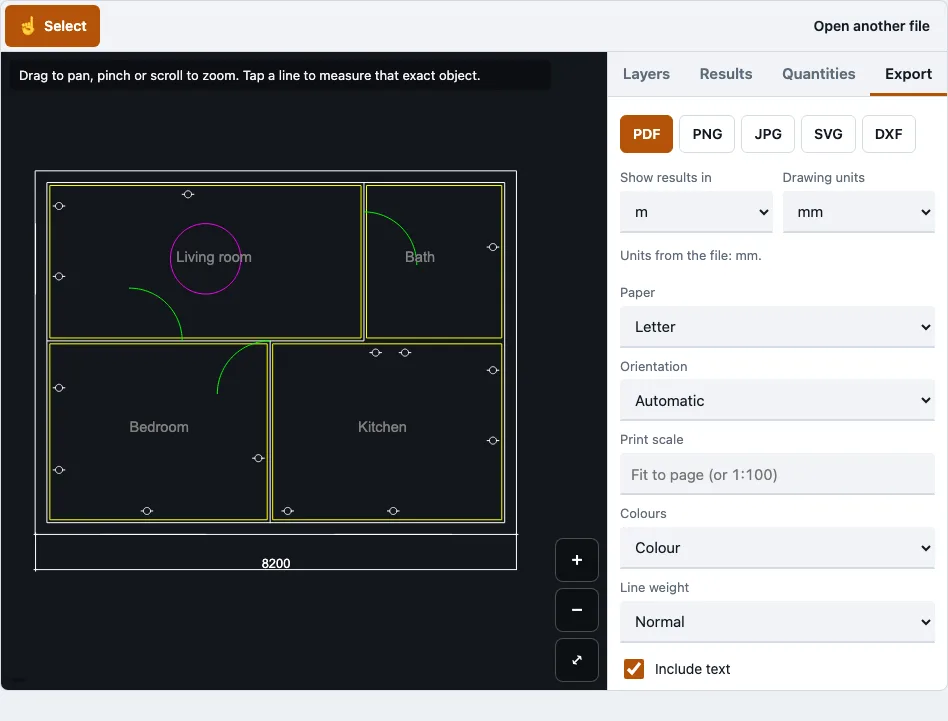
How to use the DXF to PDF converter
Open your DXF file, adjust the layers and print settings, then export the PDF.
- Choose your DXF file. The drawing opens in the browser tab. The first time, the drawing reader is fetched, about 0.7 MB compressed.
- Read the file panel. It lists the layers, every skipped object type with its count, and the paper-space layouts that are counted but not drawn.
- Open the Layers tab and switch off anything you do not want on the sheet, such as dimensions or furniture.
- Open the Export tab, choose PDF and pick a paper size, from A0 to A4, Letter, Legal, Tabloid, ANSI C to E, or ARCH C to E.
- Set the orientation to automatic, landscape or portrait.
- Set the scale to fit the page, or to a fixed scale such as 1:100.
- Pick colour, black on white or greyscale, and a line weight: thin (0.13 mm), normal (0.25 mm), bold (0.5 mm) or taken from the drawing.
- Turn text on or off, then check the preview of the page.
- Export the PDF and save it.
The preview shows the page before you export, so check the scale and line weight there first. The tool works on one file at a time, so repeat these steps for each drawing.
How do I print CAD to PDF?
Open the DXF in the browser tab, choose the paper, scale and layers, then export. For a millimetre drawing such as a laser-cut or CNC part, set a fixed scale of 1:1 so the part prints at its real size. Check the warning before you save.
- Hide unwanted layers in the Layers tab first, because hidden layers are left out of the PDF too.
- Choose a paper size that suits the drawing.
- For true size, set the scale to 1:1. A DXF made for laser or CNC work usually has no scale on paper, so this is the setting to use.
- Watch for the warning. If the drawing does not fit at the chosen scale, the tool reports that it does not fit that sheet.
- Check the preview, then export.
With the sample DXF, 1:100 prints 83 by 68 mm. At 1:1 the same drawing measures 8.25 by 6.83 m, which fits no sheet, so the tool shows the does-not-fit message. Choose a larger sheet or a smaller scale, or hide layers to make the sheet cleaner.
What is the difference between DXF and PDF?
DXF is a CAD exchange format that keeps drawing data such as lines, arcs, layers and blocks, so other programs can read or edit it. PDF is a fixed page made for viewing and printing. The table shows how they differ.
| DXF | ||
|---|---|---|
| Main use | Move drawings between CAD, CAM and laser programs | View and print a fixed page |
| What it stores | Drawing geometry and layers | A printed page with set paper and scale |
| Editable as a drawing | Yes, in CAD software | Not as a drawing |
| Scale on paper | Drawing units, often none | Fixed by the print scale you choose |
DXF is usually the source file and PDF is the output you share. Most CAD programs can also print to PDF, but this page needs no installation.
How this tool works and where the numbers come from
Fixed-scale layout was checked by calculation (paper millimetres = drawing units divided by the scale) and with test drawings of known size.
Sources
Questions and answers
Can I convert DXF to PDF?
Yes. Open the DXF in this tool, set the paper, orientation and scale in the Export tab, and save. The output is a vector PDF on one page. The drawing is read in your browser, not uploaded.
Can you save a CAD file as a PDF?
Most CAD editors can write a PDF through their print or export menus. If you do not have one installed, this tool turns a DXF or DWG drawing into a PDF from the browser instead.
What is a DXF file?
DXF stands for Drawing Exchange Format. Autodesk documented it so drawings can move between CAD, CAM and laser-cutting programs. It is stored as tagged text (ASCII) or in binary form.
What program will open a DXF file?
Most CAD, CAM and laser-cutting programs open DXF, and AutoCAD can save drawings in that format. For a quick look without installing anything, you can open the file in this tool, which draws the model space.
What free software opens DXF files?
Free CAD programs such as LibreCAD and FreeCAD can open DXF files. This browser tool is free as well, needs no sign-up, and can export the drawing to PDF.
Why does some text or hatching look different?
Hatch patterns and gradients are not drawn, though hatch outlines and solid fills are. Text from SHX or TrueType fonts is drawn in the system font. PDF text uses Helvetica, so characters outside Latin-1, such as Chinese, are left out and the number is reported.
Does my file get uploaded?
No. The drawing is read in the browser tab and never uploaded. The only downloads are the page, the drawing reader and, for PDFs, the pdf.js reader.
Are paper-space layouts included in the PDF?
No. Only the model space is drawn, so paper-space layouts are counted in the file panel but not shown. External references are not loaded either, so a drawing that depends on other DWG files shows only its own geometry.
Related tools
- DWG to PDF: use this when your drawing is in the DWG format rather than DXF.
- DXF viewer: use this to look at, measure or check a drawing before you export it.
- DXF to SVG: use this when you need an SVG vector file for a web page or editor.
- DWG to DXF: use this to get a DXF copy of a DWG drawing before you convert it to PDF.
- DWG to PNG and JPG: use this when you need a picture of the drawing instead of a PDF.
- PDF to DXF: use it for the opposite direction, from a vector PDF back to DXF.