DWG to PNG and JPG Converter
Open the DWG, choose which layers show, pick the image width and background, and save a PNG or JPG.
Free · runs in your browser · nothing is uploaded
This free DWG to PNG converter opens an AutoCAD drawing in your browser tab and exports what it shows as a PNG image. It needs no account or sign-up, and the drawing is never uploaded, because the file is read on your own device.
You can export PNG or JPG at 1024, 2048, 4096 or 8192 pixels wide, with a white, dark or (for PNG) transparent background. Only the layers you switch on are drawn, so you choose exactly what goes into the picture. The viewer handles DWG versions from R14 to R2018 and DXF files, so you do not need AutoCAD installed to make a PNG.
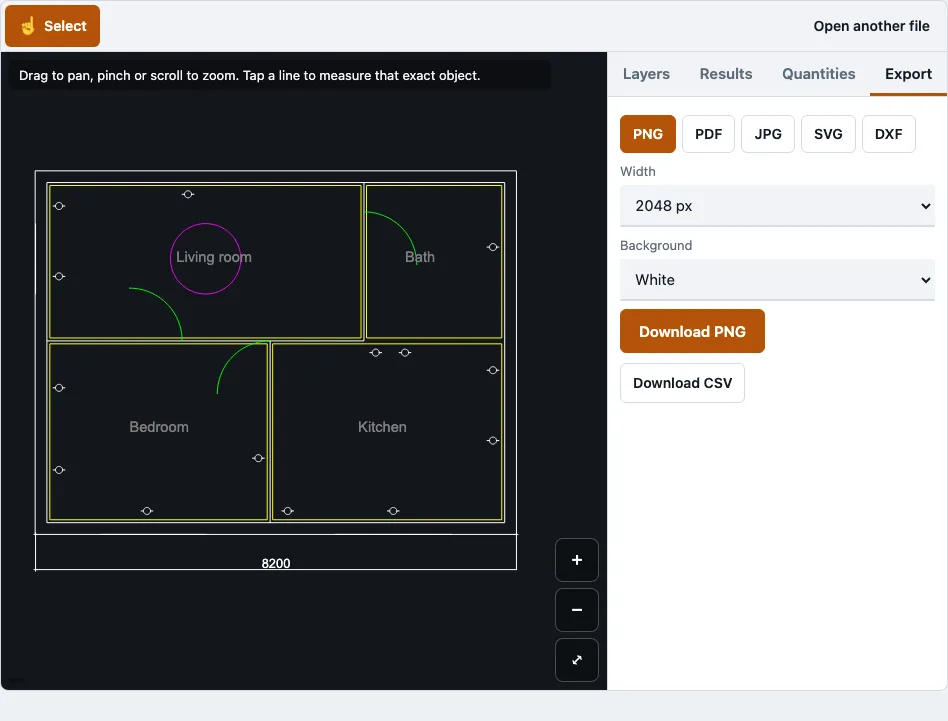
How to use the DWG to PNG converter
- Choose your .dwg file in the file picker on this page. The drawing reader loads the first time a DWG or DXF opens.
- Wait for the drawing to appear. The file panel lists the object types it skips and how many of each there are.
- Open the Layers panel. Untick the layers you do not want in the picture, or press Hide all and tick only the layers you need. Greyed-out layers are already off or frozen in the file.
- Set the Show text switch to keep or hide text in the export.
- Zoom with pinch, the mouse wheel or the plus and minus buttons, drag to pan, and press Fit to frame the visible layers.
- Open the Export tab and pick PNG or JPG, then choose a width and a background.
- Download the file. The tool reports the size of the saved image in pixels.
The Dark background switch and the cursor position shown in the corner help you check the drawing before you export. Pinch zoom works on touch screens as well as with the wheel. The image shows exactly what the viewer shows at that moment, so switch layers before you export. Its height follows the drawing, so a wide plan gives a wide picture.
How can I convert a DWG file to PNG?
Open the drawing, set the layers and width you want, then export it as a PNG. The export draws only the layers that are switched on, so the image matches what you see in the tab.
- Switch off any layers you do not need in the Layers panel.
- Choose PNG for drawings with lines and text, since PNG has no compression blur. Choose JPG only if you want a smaller file and accept some fuzz around thin lines.
- Pick a width from 1024 to 8192 pixels. The height follows the proportions of the drawing.
- Pick a background: white, dark, or transparent (PNG only).
- Export the image.
A transparent PNG leaves the background unfilled, so the drawing can sit over another picture or a coloured page. Line width grows with the image width, so thin lines stay visible at large sizes.
How do I open a DWG without AutoCAD?
Open the DWG in this browser viewer. No AutoCAD or other CAD program is needed, and the page was tested in Chromium and WebKit (the Safari engine) browsers.
The file is read in the tab and never sent anywhere, since no request carries the drawing. Only the page and the drawing reader are downloaded. The reader is about 0.7 MB compressed and loads once, the first time a DWG or DXF opens.
Which image width should I choose?
Pick the width that matches where the image will be used. For a screen or slide, 2048 pixels is enough. For A4 or A3 printing, use 4096 or 8192 pixels, and for anything larger than A3, use PDF or SVG instead.
| Use | Width to pick |
|---|---|
| Slide or screen | 2048 px |
| A4 print at about 300 dpi on a 297 mm side | 4096 px (about 350 dpi) |
| A3 print on a 420 mm side | 8192 px (about 495 dpi) |
| Poster beyond A3 | Use PDF or SVG, which stay sharp at any size |
An 8192 px image of a large plan can be several megabytes, so only go that wide when the print size needs it.
How this tool works and where the numbers come from
Print sizes in the table are the pixel widths needed for a sheet width at 300 dpi (millimetres divided by 25.4 times 300).
Sources
Questions and answers
Why export a DWG to PNG?
PNG opens in most image viewers, browsers and document programs without any CAD software. Because PNG has no compression blur, lines and text stay crisp.
Is a DWG file the same as a CAD file?
A DWG is a CAD file. It is Autodesk’s binary drawing format, used by AutoCAD since 1982, and it can hold 2D and 3D objects, layers, blocks and layouts. DXF is a separate exchange format, and the same drawing can usually be saved in both.
How do I export an AutoCAD drawing as a PNG?
This page exports a PNG straight from the DWG file, so you can skip AutoCAD’s own export steps. Open the file, switch layers as needed, choose PNG and a width, then export.
What are the quick steps to export a DWG to PNG?
Open the drawing, check the Layers panel, choose PNG and a width, pick a background, and export. The numbered steps in the guide above cover each one.
Do I need to install anything to convert a DWG?
No. The converter runs in your browser tab, and it needs no account. The drawing reader is downloaded once, when you first open a DWG or DXF.
Is my drawing uploaded when I convert it?
No. The drawing is read in your browser and is not uploaded. This viewer also does not edit or save back to DWG; it shows, measures and exports only.
Can I convert a DWG to JPG instead?
Yes, choose JPG as the format. JPG files are smaller for photographs, but they add fuzz around thin lines, so PNG usually suits drawings better.
Why are some parts of my drawing missing?
Only the model space is drawn, so paper-space layouts are counted but not shown. External references (xrefs) are not loaded, and hatch patterns and gradients are not drawn, though hatch outlines and solid fills are. Text uses the system font, and the file panel lists every skipped object type with its count.
Related tools
- DWG to PDF: use this when you need a document that stays sharp at print sizes.
- DXF to SVG: use this when you want a vector picture that scales without losing sharpness.
- DWG viewer: use this to open and measure a DWG before you export anything.
- DWG to DXF: use this when another CAD or laser-cutting program needs the drawing in DXF form.
- DXF viewer: use this to check a DXF file in the browser before you convert it.
- Open a DWG file: use it for the steps and checks when a DWG will not open.