DWG to PDF Converter
Choose paper, scale and colours, check the preview, and save the drawing as a vector PDF. The DWG stays on your device.
Free · runs in your browser · nothing is uploaded
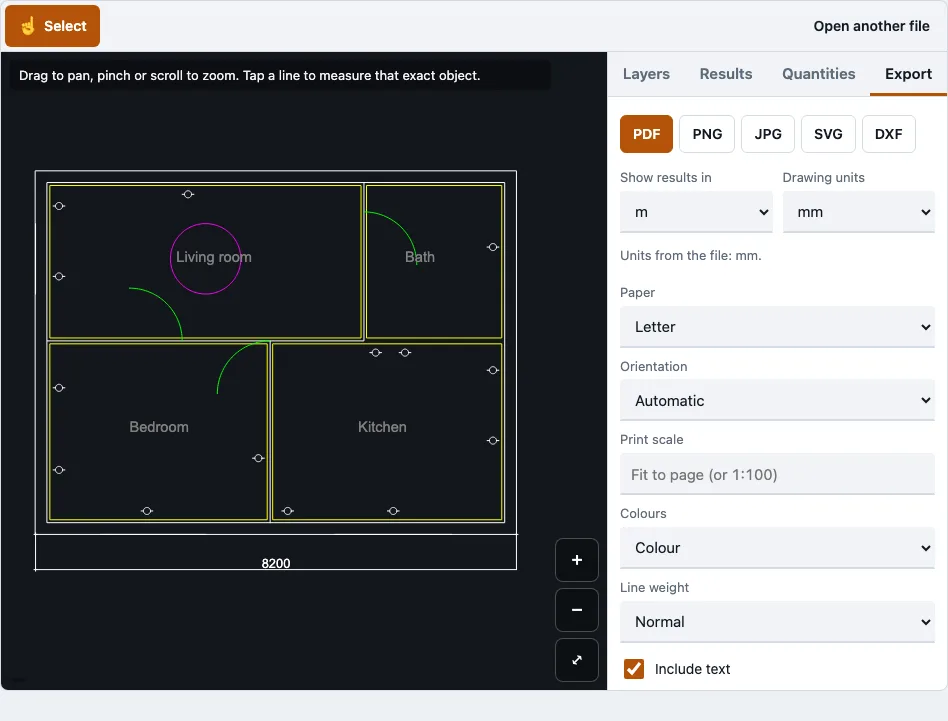
How to use the DWG to PDF converter
- Open your .dwg file in the viewer. The file panel shows the drawing version and lists any object types that were skipped.
- Open the Layers tab and switch on only the layers you want in the PDF. Check the Drawing units setting there too.
- Open the Export tab, choose PDF and choose a paper size: A0 to A4, Letter, Legal, Tabloid, ANSI C, D or E, or ARCH C, D or E.
- Set orientation to automatic, landscape or portrait.
- Choose fit to page, or a fixed print scale such as 1:100. A warning appears if the drawing does not fit at that scale.
- Pick colour, black on white or greyscale, and a line weight: thin (0.13 mm), normal (0.25 mm), bold (0.5 mm) or taken from the drawing.
- Turn text on or off, then check the preview before you export.
The preview shows the page as the PDF will lay it out, so you can catch a wrong scale or paper size before saving. Settings apply to the file you have open, so repeat these steps for each drawing. Because the PDF is vector, lines stay sharp when you zoom in or print on a large sheet. If the drawing does not fit the sheet at your scale, choose a larger paper size or a smaller scale.
How to convert DWG to PDF?
Open the DWG in the viewer on this page, check the layers and drawing units, then open the Export tab and choose PDF. The PDF is built on your device from the model space you can see, so nothing is uploaded. The result is a one-page vector file.
- Open the .dwg in the viewer above.
- Check the file panel for skipped objects, and the Layers tab for the drawing units.
- In the Export tab, choose PDF and set paper, scale, colour and line weight.
- Read the preview, then save the PDF.
Which scale fits which paper size?
A fixed print scale decides which sheet your drawing needs. The sample plan measures 8,253 by 6,827 mm, so 1:100 gives an 83 by 68 mm drawing that fits A4 with 10 mm margins, while 1:25 needs A3 landscape. Choose the largest scale that still fits your sheet.
| Print scale | Sample plan on paper | Smallest sheet that fits (10 mm margins) |
|---|---|---|
| 1:200 | 41 x 34 mm | A4 |
| 1:100 | 83 x 68 mm | A4 |
| 1:50 | 165 x 137 mm | A4 landscape |
| 1:25 | 330 x 273 mm | A3 landscape |
| 1:20 | 413 x 341 mm | A2 landscape |
Fit to page scales the sample plan to about 1:24.6 on A3 and about 1:35.9 on A4. A fixed scale only means what you expect when the units are right. If the units are unknown, the tool guesses them, so check Drawing units before exporting at 1:100 or any other fixed scale.
What is a DWG file?
DWG is Autodesk’s binary format for CAD drawings, used by AutoCAD since 1982. It can hold 2D and 3D objects, layers, blocks and layouts.
Can I save an AutoCAD file as a PDF?
If AutoCAD is on your device, you can save files as PDF within that software. This tool produces a PDF without needing AutoCAD.
Can I open the converted PDF without AutoCAD?
Yes. The PDF opens on any device with a PDF reader, so you can share it with clients who do not have CAD software.
How this tool works and where the numbers come from
Page layout is calculated from the drawing extents and the ISO and ANSI sheet sizes; the PDF structure is checked by reading the file back with pdf.js and Poppler in tests, and path counts match the drawing.
Sources
Questions and answers
Is my drawing data secure?
The drawing is read in your browser tab and is never uploaded, and no request carries the file. The only downloads are the page, the drawing reader and, for PDFs, the pdf.js reader.
Is there a file size limit?
Files up to 200 MB are accepted. Large files need memory, since a 20 MB test file used about 544 MB of WebAssembly memory.
What DWG versions are supported?
Tested versions include R14, R2000, R2004, R2007, R2010, R2013 and R2018. R12 and R13 files were not available for testing. Password-protected DWG files are refused with a message.
Is the DWG to PDF converter free?
Yes. It needs no account or sign-up, and no payment at any step.
Can I convert DWG to PDF without AutoCAD?
Yes. The drawing is read in the browser, so AutoCAD, AutoCAD LT or DWG TrueView does not need to be installed.
Will the PDF keep layers and line weights?
Layers are kept in the sense that only the layers you have switched on are exported. Line weight is set in the Export tab as thin, normal, bold or taken from the drawing.
Why does my PDF look different from AutoCAD’s print preview?
Only the model space is exported, so paper-space layouts are left out. External references are not loaded, and hatch patterns and gradients are not drawn. PDF text uses Helvetica, so characters outside Latin-1, such as Chinese, are left out and the count is reported.
Can I batch convert many DWG files?
No. The tool works one file at a time, so each drawing needs its own export.
Related tools
- DXF to PDF: use this when your drawing is saved as DXF instead of DWG.
- DWG viewer: use this when you want to look at, measure or switch layers before exporting.
- DWG to DXF: use this when another program needs an exchange file.
- DWG to PNG and JPG: use this when you need an image rather than a PDF.
- Quantity takeoff: use this when you need quantities measured from the drawing.
- PDF to DXF: use this when you have a PDF plan and need it back in CAD form.