DWG to DXF Converter
Drop a DWG, choose the DXF version your other program needs, and download the DXF. The conversion runs on your device.
Free · runs in your browser · nothing is uploaded
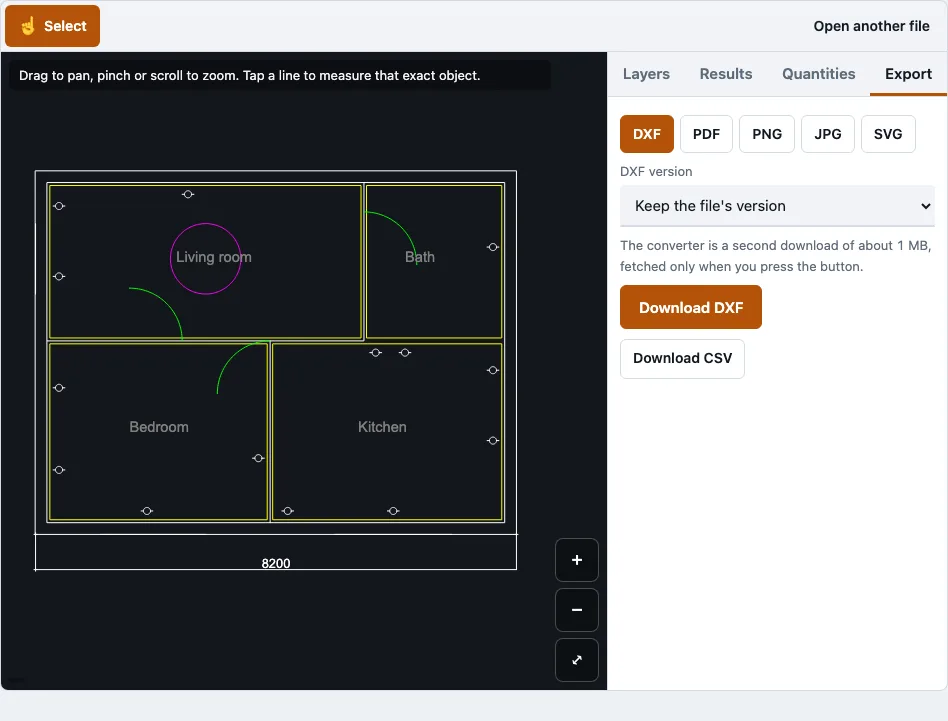
How to use the DWG to DXF converter
- Open the page and pick your .dwg file with the file picker. Files up to 200 MB are accepted.
- Wait for the drawing to load. The file panel reports any records that had to be skipped, and a password-protected file shows a refusal message instead.
- Choose the DXF version from the version options: keep the file’s own version, or set R12, R2000, R2004, R2010, R2013 or R2018.
- Press Download DXF. The converter is fetched only at this point, so the first press may take a moment.
- Check the file size shown after saving.
- Open the saved .dxf in your CAD program, or in the DXF viewer on this site, to check the layers and the geometry.
The viewer draws only the model space. Paper-space layouts are counted in the file panel but not shown, and the DXF output still holds the whole drawing. Each conversion handles one file, because there is no batch mode. The conversion uses the same reader as the viewer, so a file that opens on screen can be converted. If the file panel shows skipped records, the DXF cannot contain them either, so read the panel before you convert. Layers you hide in the viewer do not change the DXF, which holds the whole drawing.
How to convert DWG to DXF?
Open the .dwg on this page, let the drawing load, choose a DXF version and press Download DXF. The converter writes the whole drawing, including layers, blocks and objects, into a new .dxf file. Once it is saved, the tool shows the new file’s size. The DXF is written by the same open-source library that reads the DWG, so conversion needs no upload and no account, and it runs on your own device.
After you download, check the result:
- Note any skipped-record message in the file panel before converting.
- Open the saved DXF again in the same reader.
- Compare the length and area on each layer with the original drawing.
In a test with a generated floor plan saved as an AC1018 DWG, the converted DXF gave the same length and area on every layer as the DWG, to within one part in a million.
Which DXF version should I choose?
Keep the file’s own version unless the program that will read the DXF needs a different release. Choose R12 for old laser or plotter software, R2000 as a widely read middle choice, or the release your software names. The receiving program’s documentation makes the final decision.
| Version | Code | Pick it when |
|---|---|---|
| Keep the file’s version | - | you have no special need |
| R12 | AC1009 | the receiving program is old, such as simple laser or plotter software |
| R2000 | AC1015 | a widely read middle choice for older CAD programs |
| R2004 | AC1018 | your software reads R2004 |
| R2010 | AC1024 | your software reads R2010 |
| R2013 | AC1027 | your software reads R2013 |
| R2018 | AC1032 | the receiving program is current |
Older releases are read by more programs, while newer releases can hold newer object types. Older versions may not hold newer object types, so check what your drawing contains before you pick an old release.
How this tool works and where the numbers come from
Conversion output was read back in a test: per-layer length and area of the DXF equal those of the source DWG to within 1e-6. Compatibility with specific CAD programs was not tested.
Sources
Questions and answers
Can I convert DWG to DXF without AutoCAD?
Yes. The conversion runs in your browser, so you do not need AutoCAD installed. Pick the .dwg, check that it loaded, then press Download DXF.
What is the difference between DWG and DXF? Are they the same?
They are not the same format. DWG is Autodesk’s binary format for AutoCAD drawings and can hold 2D and 3D objects, layers, blocks and layouts. DXF is Autodesk’s documented exchange format, stored as text or binary, and it is larger than DWG for the same drawing.
Will layers and blocks be preserved?
Yes. The whole drawing is written, not only what is on screen, so layers and blocks are in the new file. In the test below every layer kept its name and had the same length and area after conversion, with the geometry inside blocks counted. Colours, linetypes and layer visibility were not compared one by one, so check them in your CAD program.
Does converting to DXF lose any data?
In the test, a drawing with lines, polylines, arcs, circles, ellipses, splines, hatches and blocks gave matching lengths and areas after conversion. Other object types were not compared. External references are not loaded, so content that exists only in linked DWG files is not part of the drawing. For DWG R2010 and later, the file panel reports any records that had to be skipped.
Are my files uploaded to a server?
No. The drawing is read in your browser tab, and no request carries the file. In a browser test, a second DWG still opened after the network was switched off.
Will the DXF open in AutoCAD?
DXF is designed as a shared exchange format that most CAD programs read, and AutoCAD can open it. This tool did not test the output in AutoCAD, so compatibility with a specific program is not guaranteed.
Is the converter free?
Yes. The tools on this site are free to use and need no account or sign-up. Each file is converted one at a time.
Can AutoCAD export to DXF?
Yes. AutoCAD can save a drawing as DXF with Save As, and it can save as DWG as well. This page gives the same result without installing AutoCAD.
Related tools
- DWG viewer: open a DWG to look at, measure or export its drawing without converting it.
- DWG to PDF: use this when you need a printable or shareable PDF of a drawing.
- DXF viewer: open a converted or downloaded DXF file to check its contents.
- PDF to DXF: use this when your source is a PDF rather than a DWG.
- DXF to SVG: convert a DXF into an SVG for web use or vector editing tools.
- Open a DWG file: use it when you only need to look at the drawing first.