Construction Takeoff Software
Set the scale, measure walls, floors and fixtures into named categories and export the quantities, with the plan staying on your device.
Free · runs in your browser · nothing is uploaded
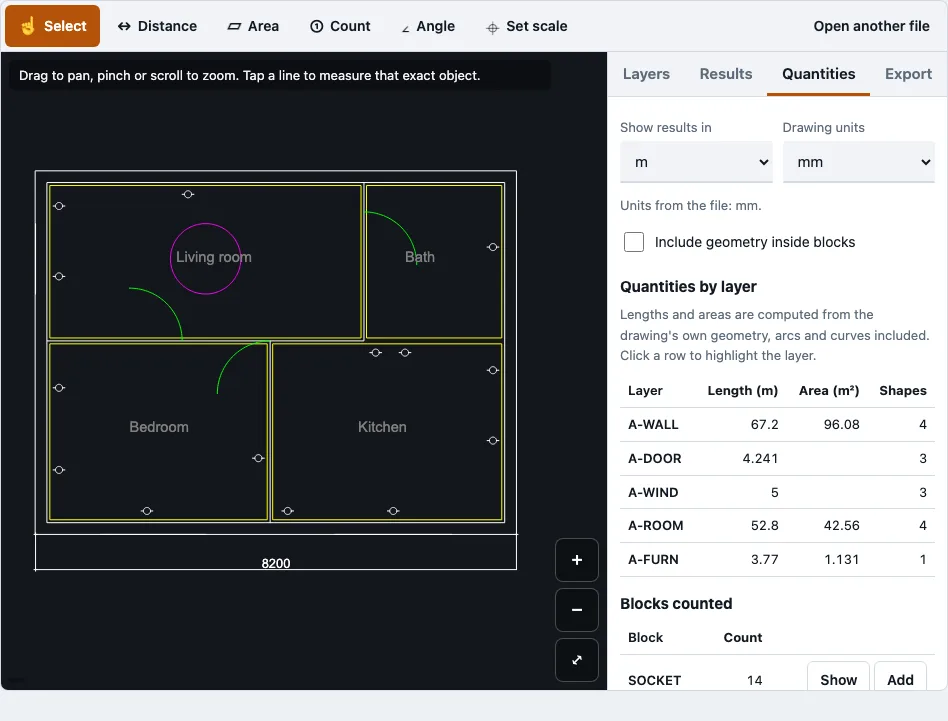
How to use the Construction Takeoff Tool
Follow these steps on one plan at a time.
- Open a plan. Tap Try a sample floor plan to practise, or open your own PDF, DWG, DXF, PNG or JPG.
- Set the scale. Type a ratio such as 1:100, or an imperial scale such as 1/4"=1’-0". You can also tap two points whose real distance you know and enter it in m, mm, cm, ft or in. Distance and Area stay unavailable until a scale is set.
- Add a category, such as Walls, Floor or Sockets.
- Pick Distance, Area, Count or Angle, then tap the plan. Taps snap to the nearest line end, corner or vertex within 14 screen pixels. Use Finish to close a measurement, Undo point to remove the last point, or Cancel to drop it.
- On a DWG or DXF, choose Select and tap an object to see its type, layer, block name, exact length and area. With Count, tap a block to count every copy of it.
- Open the Quantities tab for totals per layer. Click a layer row to highlight it on the drawing, click Show to highlight a block, or click Add to put a block count into the results.
- Open the Results tab to read the totals table per category, then download the CSV, use the copy button for a spreadsheet, or clear the results.
Measurements are saved in this browser per file name and size, so reopening the same file restores them.
What is a quantity takeoff?
A quantity takeoff is the process of measuring and listing all the materials, parts and labour a construction project needs. In this tool, it means measuring lengths, areas and counts from a drawing, and the output is quantities only, not costs.
Accuracy depends on the file type. On vector PDFs and DWG or DXF files, taps snap to line ends and corners, and Select gives the exact length or area of a path or object. On scanned PDFs and images, points land where you tap, so accuracy depends more on your scale and your tap position.
| Output | What it holds | Source |
|---|---|---|
| Quantities tab, per layer | Total length, total area of closed shapes, shape count | Exact geometry in DWG/DXF and vector PDF |
| Block counts | Every block with its number of copies, arrays included | DWG/DXF |
| Results totals | Length, area and count per category | Your taps and Add |
| CSV download | The results totals in spreadsheet form | Results tab |
What is the difference between takeoff and estimating software?
Takeoff software produces the quantities from a drawing, while estimating software takes those quantities and adds unit prices, labour and markups to reach a cost. This tool covers the quantity step only, so its CSV has length, area and count columns ready for prices you add in a spreadsheet. Estimators then price those quantities in their own spreadsheet or estimating program.
What this takeoff does not do
- No prices or costs.
- No volumes or heights: wall height is not multiplied in.
- No deductions between rooms. On the sample plan, the 52.8 m of room outlines multiplied by an assumed 2.4 m ceiling would give 126.7 m², but the tool has no wall heights or deductions, so check the geometry before using such a figure.
- No team sharing or cloud storage.
- No AI recognition.
- No batch mode: one file at a time.
How this tool works and where the numbers come from
Quantities on the sample plan were compared with the generator’s exact lengths, areas and block counts; PDF scale arithmetic follows PDF 32000-1.
Sources
Questions and answers
Is there a free version of takeoff software?
Yes. This construction takeoff tool is free to use and needs no account or sign-up. Try the sample floor plan first to see how the totals look before you open your own drawing.
What is takeoff software?
Takeoff software is a digital tool that lets construction teams measure materials straight from plans, such as counts, areas and lengths, instead of doing manual calculations. This tool covers lengths, areas and counts, but it does not calculate volumes.
What is AI takeoff?
AI takeoff uses artificial intelligence to read construction drawings and return measurements automatically. This tool does not work that way. It uses no AI, and every quantity comes either from exact CAD geometry or from points you tap.
Does AI takeoff replace manual takeoff?
No. This tool does not recognise anything on its own, so you choose each measurement by tapping or by selecting a DWG or DXF object. An estimator still checks the scale and the results, and the tool is not built to replace that judgement.
Can I open the results in Excel?
Yes. Download the CSV or use the copy button, then paste into a spreadsheet. English CSVs use commas and decimal points, while German, French, Italian, Spanish and Portuguese CSVs use semicolons and decimal commas. Text starting with =, +, - or @ gets a leading apostrophe.
Are my drawings uploaded to a server?
No. The drawing is read in your browser tab, and no request carries the file. The only downloads are the page, the drawing reader for DWG or DXF (about 0.7 MB compressed, fetched the first time you open one) and pdf.js for PDFs.
Can I measure a DWG or DXF file?
Yes. Use Select to get the exact length or area of a tapped object, and use Count on a block to count every copy, arrays included. Geometry inside blocks is off by default so block symbols do not inflate lengths, and you can turn it on in the Quantities tab.
Why don’t my measurements match the drawing?
Check the scale first. Measure one dimension written on the drawing and compare it with the tool’s number. If the difference is more than 1 percent, the PDF was probably not printed at 100 % or the title block scale is not the real one.
Related tools
- Quantity takeoff: use this when you want the full process behind listing materials from a project.
- PDF measuring tool: use this when your plan is a PDF and you only need distances and areas from it.
- Floor plan measurement tool: use this when you are measuring rooms, walls or fixtures on a floor plan.
- DWG viewer: use this when you want to open and inspect a DWG drawing before measuring.
- PDF to DXF: use this when you need your plan in DXF form for a CAD or cutting program.
- DXF viewer: use it when your plan is a DXF file and you want to check its layers.