CAD Viewer Online
Open a DWG, DXF or PDF drawing, switch layers, measure and count, then export, all inside this browser tab.
Free · runs in your browser · nothing is uploaded
Tool index
| DWG to DXF Converter | DWG to DXF converter with version choice |
|---|---|
| DWG to PDF Converter | DWG to vector PDF converter |
| DWG to PNG and JPG Converter | DWG to PNG and JPG image converter |
| DXF to PDF Converter | DXF to vector PDF converter |
| DXF to SVG Converter | DXF to SVG converter in millimetres |
| PDF to DXF Converter | Vector PDF to DXF converter |
| Construction Takeoff Software | Browser takeoff: length, area and count |
|---|---|
| Floor Plan Measurement Tool | Measure rooms and areas on a floor plan |
| PDF Measuring Tool | Measure distances and areas on PDF plans |
| Quantity Takeoff from DWG and DXF | Quantities per layer and block from CAD |
| DWG Viewer | Online DWG viewer and measuring tool |
|---|---|
| DWG Viewer for Mac | DWG viewer that runs in Safari on Mac |
| DXF Viewer | Online DXF viewer and measuring tool |
| Open a DWG File | Open DWG files in the browser |
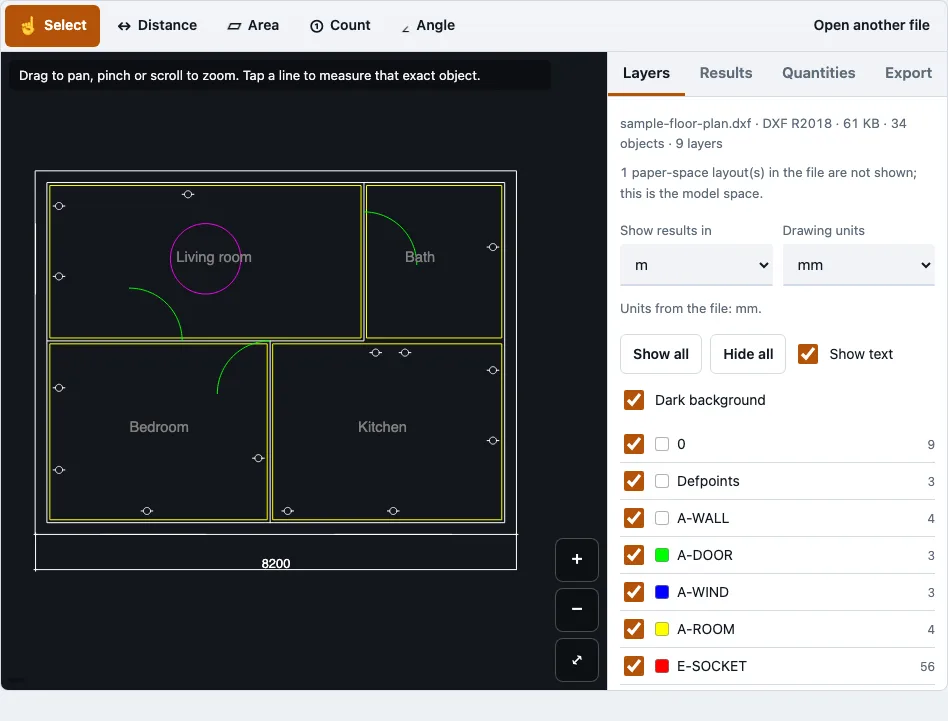
How to use the DrawTape viewer
- Choose a DWG, DXF or PDF file on the tool at the top of this page. The drawing opens in your browser tab.
- Read the file panel. It shows the file name, format and release, size, object count, layer count, any skipped object types and the number of paper-space layouts.
- Open the Layers panel and tick or untick each layer. Show all, Hide all, Show text and Dark background change the whole view. Layers that are off or frozen in the file are listed but greyed out.
- Zoom with pinch, the mouse wheel or the plus and minus buttons. Drag to pan, and press Fit to frame the visible layers.
- Pick a measuring tool: Select, Distance, Area, Angle or Count. Tap your points. They snap to the nearest line end, corner or vertex within 14 screen pixels.
- To print, open the Export tab and choose PDF. Choose the paper size, orientation, fit to page or a fixed scale, colour mode, line weight and whether text is on. Check the preview, then export.
Units come from the drawing. If a file has none, DrawTape guesses, says so and lets you change them. For PDF and image plans, Distance and Area stay off until you set a scale: type a ratio such as 1:100 or an imperial scale such as 1/4"=1’-0", or tap two points whose real distance you know. For length and area per layer and block counts, open the Quantities tab.
What is a CAD viewer?
A CAD viewer is a program that opens computer-aided design files and displays them without the editing tools of the original software. DrawTape is a CAD viewer: it shows, measures and exports DWG, DXF and PDF drawings, but it does not edit them or save changes back to DWG.
DWG is Autodesk’s binary drawing format, used by AutoCAD since 1982. DXF (Drawing Exchange Format) is Autodesk’s documented exchange format, stored as text or binary, and it is usually larger than DWG for the same drawing. A viewer draws what the file stores and nothing more.
What DrawTape draws and what it leaves out
DrawTape draws the model space of a drawing. The table shows where the line falls for the main parts of a file.
| Item in the file | What happens |
|---|---|
| Model space geometry | Drawn |
| Layers switched off or frozen | Listed in the Layers panel, greyed out, not drawn |
| Paper-space layouts | Counted in the file panel, not drawn |
| External references (xrefs) | Not loaded; only the drawing’s own geometry is shown |
| Skipped object types | Named in the file panel |
| Password-protected DWG | Refused, with a message |
Which file types does this viewer open?
This viewer opens DWG, DXF and PDF files. Each DWG and DXF version in the table below was tested with sample files, so those are the releases to expect to work.
| Format | Tested versions |
|---|---|
| DWG | R14 (AC1014), R2000 (AC1015), R2004 (AC1018), R2007 (AC1021), R2010 (AC1024), R2013 (AC1027), R2018 (AC1032) |
| DXF | R12 (ASCII and binary), R2004 (binary), R2018 (ASCII), R2000 and R2018 written by ezdxf |
| Opened with pdf.js; multi-page files get a page selector |
Files up to 200 MB are accepted. R2010 and later DWG files are read with error recovery switched on, and the file panel says when any records were skipped. DWG R12 and R13 files could not be tested. Reading is fast, and memory is the limit for very large files. The times below are the drawing-reader times in headless Chromium on a desktop, measured on 25 October 2026.
| Test file | Size | Polylines drawn | Reader time | WebAssembly memory |
|---|---|---|---|---|
| ACadSharp sample, R2018 | 1 MB | 561 | about 50 ms | 11 MB |
| Real floor plan | 2 MB | 3,415 | about 55 ms | 8 MB |
| Synthetic DWG | 8 MB | 52,025 | 0.6 s | 198 MB |
| Synthetic DWG | 20 MB | 138,525 | 1.7 s | 544 MB |
With a 375 px touch window and the main thread slowed four times, the 20 MB file was on screen after 2.6 s. A real phone may have less free memory than the test machine, so a very large file can fail there.
How this tool works and where the numbers come from
Opening and measuring were tested on sample drawings of known size (ACadSharp samples, MIT; drawings written with ezdxf) and the browser tests are repeated before each release. The reader is the open-source acadrust library compiled to WebAssembly.
Sources
Questions and answers
Is there a free CAD viewer?
Yes. DrawTape is free to use and needs no account or sign-up. You can open DWG, DXF and PDF files, measure them and export a PDF without buying AutoCAD.
How do I view DWG and DXF files online?
Choose the file on this page and the drawing opens in your browser tab, with no install needed. Use the Layers panel to switch layers, and press Fit to frame the drawing.
How do I view a CAD file?
Pick the file on this page and wait for the file panel to appear. Then use the zoom controls and the Layers panel to look at the drawing. The same steps work for DWG and DXF files.
Are my files uploaded?
No. The drawing is read in your browser tab and never uploaded, and no request carries the file. The only downloads are the page, the drawing reader (about 0.7 MB compressed, fetched the first time a DWG or DXF is opened) and, for PDFs, the pdf.js reader.
Can I edit the drawing or save changes to DWG?
No. This viewer shows, measures and exports drawings. It does not edit them or save them back to DWG.
Related tools
- DWG viewer: use it when your drawing is an AutoCAD DWG file.
- DXF viewer: use it when you have a DXF exchange file from another CAD or laser-cutting program.
- PDF measuring tool: use it when you need to measure a PDF plan after setting its scale.
- DWG to PDF: use it when you want a print-ready PDF of a drawing.
- Quantity takeoff: use it when you need areas and lengths counted from a plan.
- PDF to DXF: use it when you need a DXF file from a PDF plan.